Web Macro
A browser panel with precise profiles, attachment settings, button binds, and synchronization across computers.
- Every weapon, sight, and attachment
- Real-time preset autosave
- Updates included with access
Web Macro manages your profiles while MAKCU executes commands directly. Every preset is stored in your account and stays ready after sign-in.
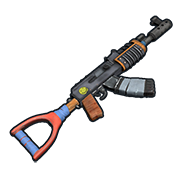
AK

Direct panel connection
Web Macro and MAKCU work as one setup. Already have the device? Choose panel access. Need one? Submit a separate MAKCU request.
A browser panel with precise profiles, attachment settings, button binds, and synchronization across computers.

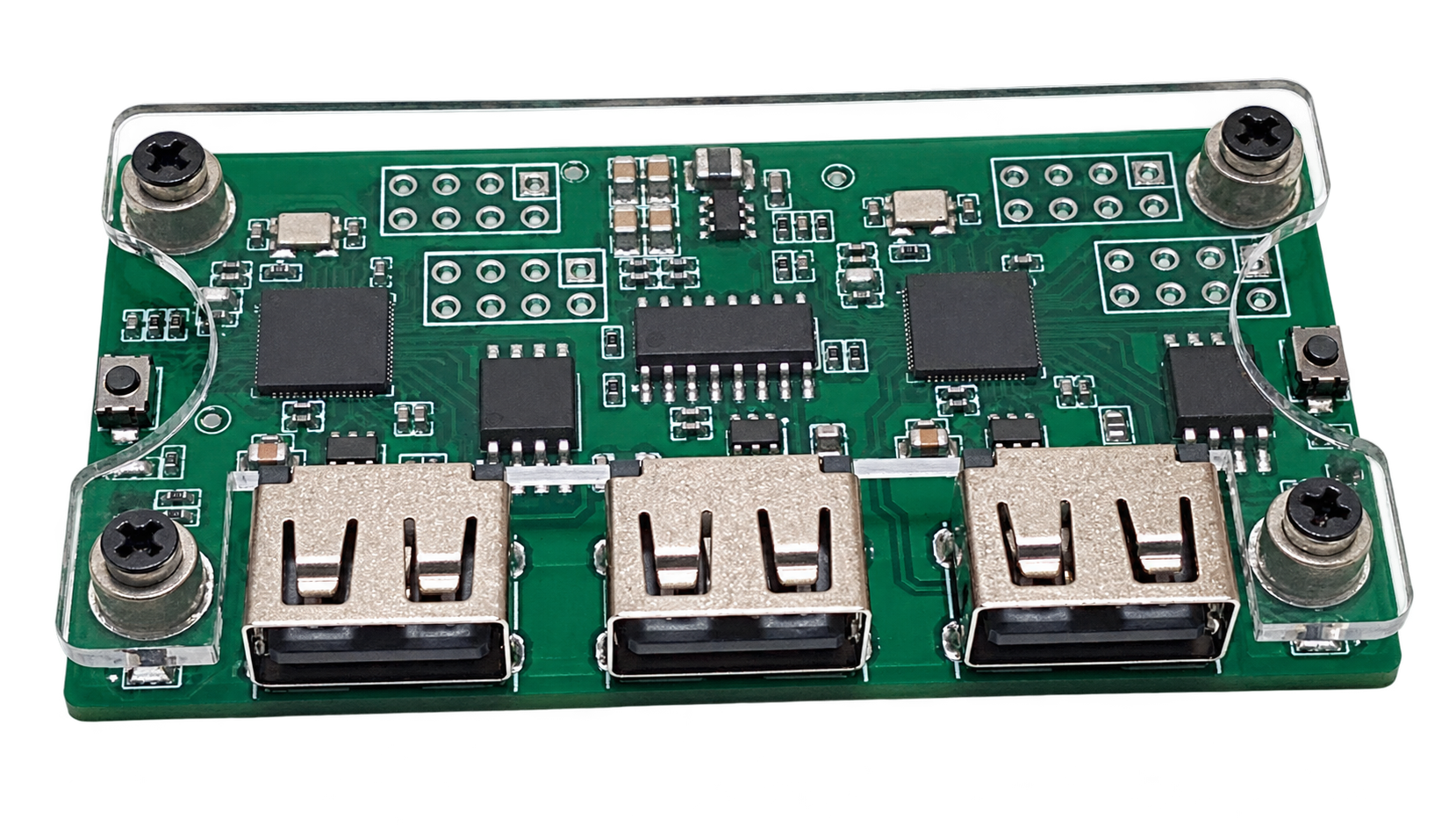
Compact USB hardware for direct panel command execution without unnecessary software layers.
Web Macro handles profiles and configuration. MAKCU handles physical execution. Each product is purchased independently.
Choose your weapon, sight, attachments, and stance, then set your FOV and sensitivity — Web Macro prepares the right trajectory and sends it to MAKCU.
Ready profiles for every supported weapon. Switch your active weapon in just a couple of clicks while you play.
The trajectory adjusts to your selected sight, attachments, stance, FOV, and mouse sensitivity.
Connect MAKCU to your computer or Android phone and activate a profile — the device executes the trajectory while you fire.
Web Macro and MAKCU connect without complicated setup — choose a profile and start playing.
Choose a subscription term and instantly unlock the panel and its profile library.
Connect MAKCU to your computer or Android phone — the panel will detect the device and prepare it automatically.
Choose your weapon, sight, and attachments — the active profile will run through MAKCU.
1
2
3
The phone must act as the USB host: use a real OTG adapter and a data-capable cable.
Select CH343/USB and allow the browser to access the device.
Connect MAKCU USB 1 to the gaming computer or console, then connect the mouse to USB 3.
Connect the middle USB 2 (COM) port to the phone through a USB-C OTG adapter and a data-capable cable.
Enable OTG in Android settings if your phone provides a separate OTG switch.
Open the secure HTTPS Web Macro address in Chrome and sign in to your account.
Press “Connect MAKCU”, select the CH343/USB device, and grant browser access.
Android cannot see the device? Test the OTG adapter with a USB drive and replace the cable: a charge-only cable will not work. WebUSB is also unavailable over plain HTTP.
Already have MAKCU? Choose panel access. Need a device? Place a preorder and connect it once it arrives.
No. MAKCU controls the mouse itself at the hardware level, so it looks like normal hand movements to the game and anti-cheat. No injections, DLLs, or suspicious processes.
Yes. You can use it from one computer, a second PC, or even Android. This is convenient when you need to switch quickly or reduce the risk during server checks—the main PC stays “clean.”
Ready profiles for supported weapons, precise adjustment for sights, attachments, stance, FOV, and sensitivity, quick binds, and separate X/Y strength controls. Presets save automatically and remain available through your account.